Mastering Debugging & Performance in Flutter Apps


Introduction
Debugging Flutter apps can feel deceptively complex. The framework promises smooth 60–120 FPS animations and native-like performance, yet in production, hidden issues emerge: rebuild storms, choppy scrolls, network delays freezing UI, memory spikes, and elusive bugs buried in ViewModels.
This guide presents a practical and repeatable approach for identifying and solving errors in Flutter apps.
Understanding Common Flutter Problems
Real-world apps face subtle issues that emerge under production load. Understanding these categories helps developers diagnose systematically instead of chasing symptoms.
1. UI Jank & Frame Drops
Jank occurs when frames take longer than 16ms to render (60 FPS) or 8.3ms (120 FPS), causing visible stutter and dropped frames.
Common causes:
- Widgets are rebuilding too frequently
- Heavy animations are causing layout recalculations
- Large images decoding on the main thread
- Complex ListView/Grid children rebuilt on scroll
- Charts recalculating every frame without throttling
2. Silent Errors & Hard-to-Reproduce Crashes
The hardest bugs to catch—they surface randomly, often only on specific devices or after prolonged usage, and remain invisible in debug mode.
When they appear:
- On low-end devices with limited memory
- After 30–40 minutes of continuous use
- During garbage collection under memory pressure
- When ViewModels outlive their intended lifecycle
Root causes:
- Missing
awaitstatements causing unhandled exceptions - Multiple subscriptions to Streams or ChangeNotifiers
- ViewModels are not disposed correctly
- Accessing disposed controllers
Defense: Use structured logging (DevTools, Sentry), implement lifecycle tracing, and ensure consistent cleanup with dispose(), cancel(), and close().
3. Network & API Stalls
Network slowdowns often appear as UI freezes when the main thread blocks on pending operations.
Common scenarios:
- Slow APIs are increasing spinner duration
- Pagination logic mismanages tokens/offsets
- Offline mode triggering retry loops without backoff
- Multiple ViewModels calling the same endpoint
Solutions: Debounce API calls, implement caching (Isar/Hive), profile with alice, and decouple background fetching from UI updates.
4. Memory & CPU Spikes
Without proper resource management, memory consumption rises with each rebuild or navigation, leading to low FPS or OS termination.
Common sources:
- Full-resolution images rendered inline
- Deep widget trees with multiple layers
- Large JSON operations on the main thread
- Dozens of active listeners/animations
Prevention: Move heavy work to isolates, implement memory-aware caching, dispose resources proactively, and monitor the DevTools Memory tab for "memory drift."
5. Release-Only Bugs
The most frustrating category—bugs that only appear in profile or release mode due to Flutter's different build pipelines:
- Debug: JIT engine with loose optimizations
- Profile: Near-release performance with instrumentation
- Release: AOT compilation with different shader/asset handling
Animations, image loads, or shaders may break only in release builds, especially without shader warm-up or when code assumes debug frame rates.
Prevention: Test in profile/release modes, monitor with Crashlytics/PostHog, and test on mid-range devices.
The Core Toolkit: Flutter DevTools
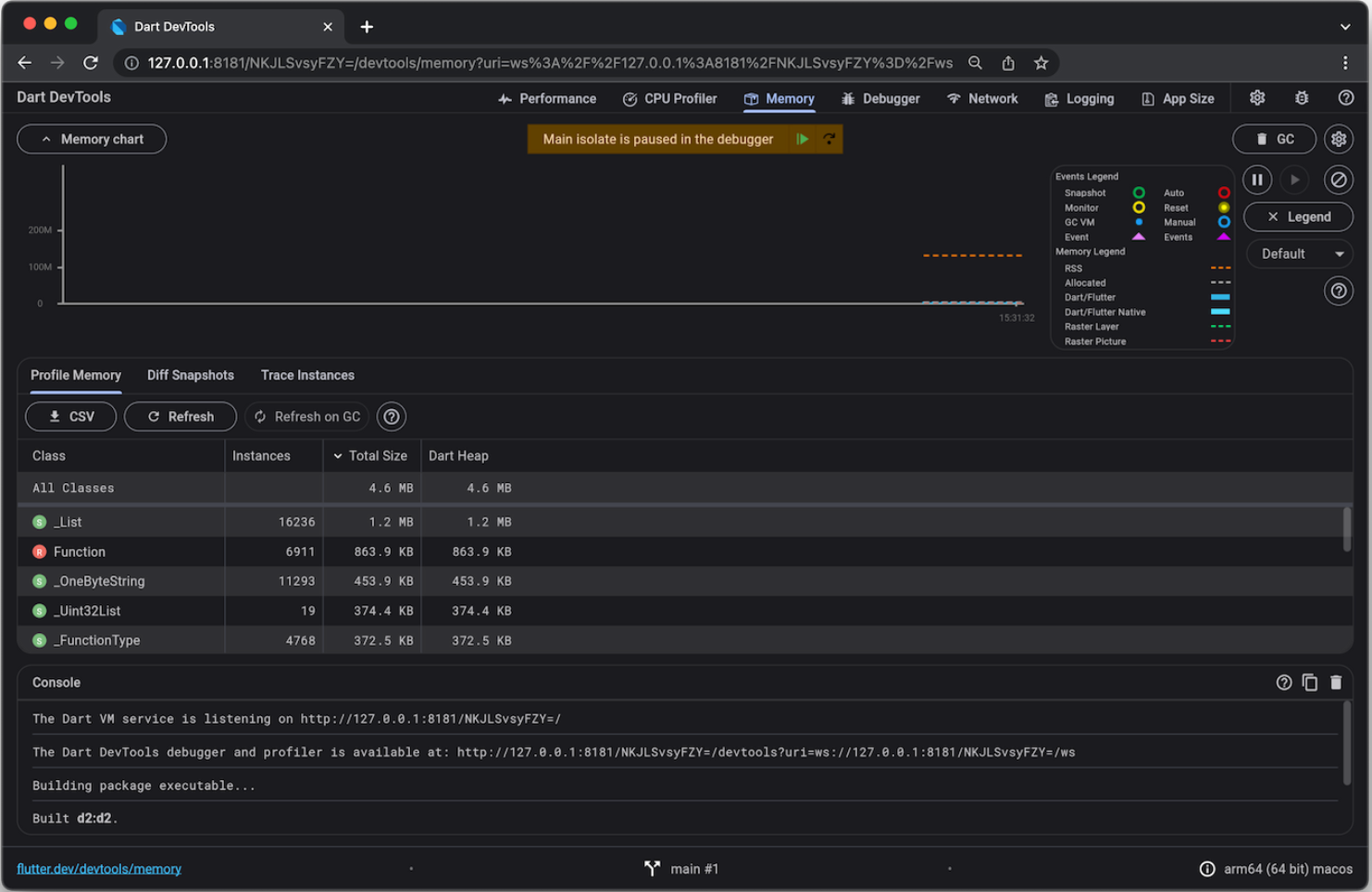
Flutter DevTools is your command center for diagnosing, analyzing, and optimizing app performance across four critical views.
1. Performance View
This view is dedicated to detecting UI jank and pinpointing rendering problems. It provides:
- Flutter frames chart: Visualizes UI and raster thread activity, showing how long each frame takes to render.
- Frame analysis tab: Lets you select any slow ("janky") frame, offering hints and highlighting expensive operations that may have caused delayed rendering.
- Timeline trace viewer: Tracks sequence of events, including widget builds, layouts, and paints, helping you spot specific UI code causing bottlenecks.
- Jank and shader compilation detection: Frames that exceed 16ms (breaking 60 FPS) are marked, and frames with first-use shader compilation show distinct warnings, making these issues easy to identify and address.
2. CPU Profiler
The CPU Profiler records and visualizes program execution on the UI thread. It helps you:
- Identify heavy synchronous tasks (e.g., big JSON parsing, sorting, chart calculations) that hog the main thread and degrade responsiveness.
- Spot microtasks and isolate method calls in a flame chart, showing exactly where time is spent, so you can trace sources of lag and refactor or offload them with
compute()orIsolate.run()
3. Memory Profiler
This tool monitors live memory usage, allocation, and retention over time, enabling you to:
- Detect memory spikes caused by large image loading or holding onto unnecessary scroll list items.
- Reveal leaking controllers (e.g., AnimationController, ScrollController) that aren’t properly disposed, or widgets holding references too long.
- Track “memory drift”: gradual increases often indicate disposal or listener issues, helping you avoid crashes or performance drops over time.
4. Network Profiler
The Network Profiler provides insight into API behavior and data flows. It allows you to:
- Monitor each network request in real time, detecting duplicated calls from multiple ViewModels or widgets firing the same API.
- Analyze slow responses (for example, from DynamoDB or AppSync), large payloads, and missing caching—all of which contribute to UI delays.
- Validate the reliability of your connectivity logic and caching strategies to ensure a consistently responsive app, especially for offline-first use cases.
Essential Third-Party Packages
| Package | Purpose |
|---|---|
| logger | Color-coded, filterable logs with levels (INFO, WARNING, ERROR) |
| alice | In-app HTTP inspector showing headers and responses |
| firebase_crashlytics | Production error monitoring for real devices |
| State management tools | Log events and state transitions |
| PrettyDioLogger | Enhanced dio console formatting |
Debugging Common Problem Areas
1. UI: Widget Inspector & Rebuilds
Tools:
- Repaint Rainbow: Highlights unnecessary repaints
- Rebuild Counters: Finds excessive rebuilds
Fixes: Use const constructors, RepaintBoundary, and ValueListenableBuilder.
2. Logic: State, Streams & Controllers
Issues: Multiple listeners, missing dispose(), race conditions.
Rule: Dispose all ScrollController, AnimationController, StreamSubscription, TextEditingController.
3. Deep Links & Navigation
Common issues: AASA/CloudFront headers, TeamID mismatches, double slashes, and wrong routing.
Build Failures & Release Mode Debugging
1. Build Failures
iOS: Provision profiles, bundle IDs, entitlements, Podfile conflicts
Android: Gradle mismatches, Dex errors, R8, multidex, manifest merges
Use flutter build ios --verbose and flutter build apk --stacktrace for detailed logs.
2. Release Mode Debugging
- Test on mid-range devices
- Use profile mode for animations
- Monitor via Crashlytics/Sentry
- Remember: Release ≠ Debug
Performance Best Practices
- Use
CachedNetworkImagefor user uploads - Offload heavy work with
compute()orIsolate.run() - Prefer
ListView.builderover massive lists - Pre-cache critical images
- Use
constconstructors to reduce rebuilds - Dispose all controllers properly
- Cache aggressively
Systematic Debugging Workflow
- Reproduce — Create reliable trigger steps
- Profile — DevTools timeline, CPU, memory
- Inspect — Widget Inspector for rebuilds
- Analyze — Review logs and breadcrumbs
- Debug network — Profile API calls
- Validate — Test in release mode
- Monitor — Watch for regressions
Hoomanely Context: Why This Matters to Us
At Hoomanely, trust is everything. A janky UI or random crash undermines that trust. Each release focuses on making the experience faster, smoother, and more stable—from detecting micro-jank to catching memory leaks early.
Key Takeaways
- Use DevTools routinely, not reactively
- Augment with Sentry, logger, Alice
- Profile before optimizing
- Dispose of all controllers
- Isolate heavy work off the UI thread
- Cache aggressively
- Always test in release mode
- Make debugging continuous, not crisis-driven