Extract Images and Videos From Excel Files and Google Drive Links
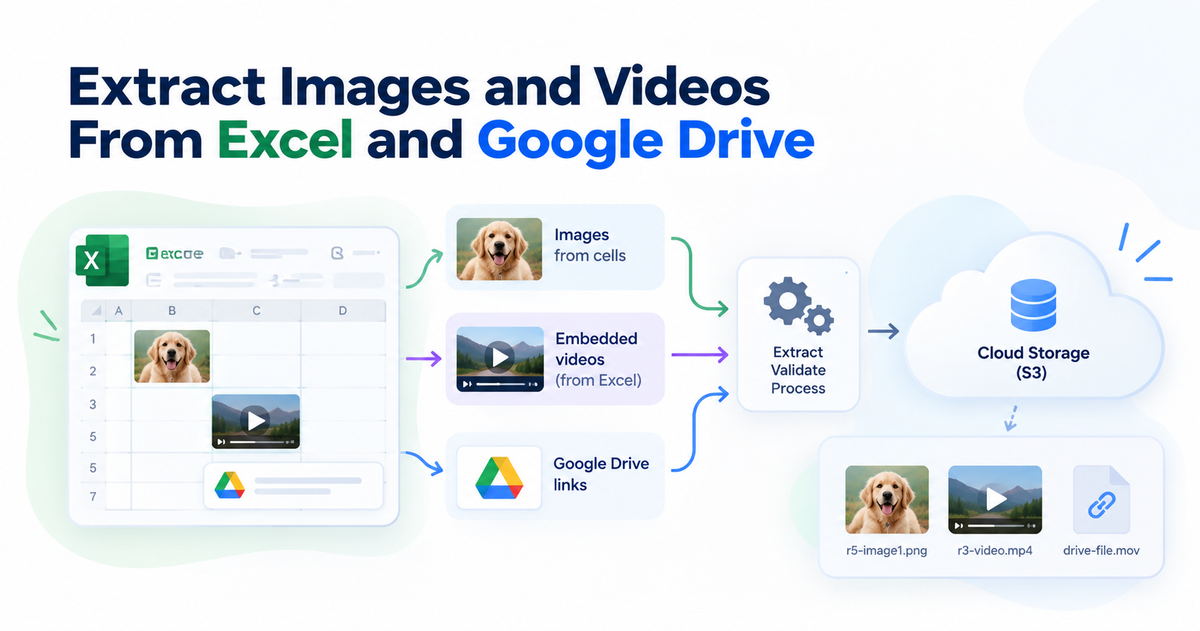
We built our content planner to extract pictures and embedded videos directly from Excel files in the browser. Google Drive links follow a different path: a background worker downloads each file and streams it into storage in 8 MiB parts, without loading the entire file into memory, even when the video is 500 MB.
This article explains how we connect pictures to their spreadsheet rows, recover videos inserted through Excel's Insert → Object feature, and safely import files from Google Drive. The work started with a practical problem in our operator console: our team needed to plan a week's worth of community posts without downloading, renaming, and organizing every media file separately.
The short version
- An .xlsx file is a ZIP package, so the browser can read its XML and extract pictures and embedded videos without uploading the workbook to our server.
- Each picture's drawing anchor identifies its spreadsheet row and column, allowing us to associate the media with the correct post in a template that is 24 columns wide.
- Google Drive imports extract the file ID and validate every redirect, allowing at most 4 redirects to approved Google hosts.
- A Drive response containing HTML is rejected as a private or invalid download, even when Google returns HTTP 200.
Why a CSV and a ZIP were not enough
Our first version of the content planner accepted two files: a CSV exported from the spreadsheet and a ZIP containing the images. The workflow seemed reasonable, but it depended on the team keeping the two files perfectly synchronized.
In practice, the media already lived in Google Drive. When someone inserted a Drive file into Google Sheets, it appeared as a file chip. Exporting the sheet to CSV preserved the file's name, such as 3011.jpeg, but not the actual image.
That left the team downloading the media, collecting everything into a ZIP, and hoping the filenames matched the rows in the spreadsheet. Duplicate filenames became 3011 (1).jpeg, iPhones sometimes produced HEIC images, and a small naming mismatch could leave a scheduled post without its picture.
We could have kept improving the filename-matching logic, but that would have meant maintaining a workaround for a problem we could avoid. The media was already represented in the spreadsheet. We needed to read the Excel file itself instead of asking the team to prepare another archive.
An Excel workbook is a ZIP package
An Excel .xlsx file is an Office Open XML package. Underneath the familiar spreadsheet interface, it is a ZIP archive containing XML documents, media files, and relationship files that connect those pieces.
If you open the archive, you will find worksheet data in xl/worksheets/, shared text in xl/sharedStrings.xml, and pictures in xl/media/. Embedded objects and their relationships live in other parts of the package, including xl/embeddings/ for the videos we support.
We use the fflate library to unpack the workbook in the browser. That means the workbook stays on the operator's laptop during extraction and does not need to be uploaded to our server just to retrieve its pictures and embedded media.
There is one practical limitation: the browser keeps the workbook's contents in memory while processing it. We therefore reject spreadsheets larger than 1 GB before opening them, rather than letting a very large file consume an unreasonable amount of memory.
Matching a picture to its spreadsheet cell
A picture in Excel is not necessarily stored inside the cell where it appears. Instead, the worksheet references a drawing, and that drawing contains an anchor describing where the picture is positioned.
The anchor's from element provides the starting row and column, along with offsets that describe the picture's position within the cell. A relationship ID then connects the picture to its actual file in xl/media/.
Our extractor follows those relationships to retrieve the original bytes. It reads both one-cell and two-cell anchors, ignores shapes that do not contain pictures, and skips entries whose anchor, relationship, or media file cannot be resolved.
The row tells us which post the picture belongs to. The column tells us what the picture is for. For example, an image in the images column becomes the post's main image, while one in video_poster becomes a video's cover. Pictures placed in unrelated columns are reported and ignored.
When several pictures occupy the same cell, we order them by their horizontal offsets. Each extracted file receives a unique name, such as r5-image1.png, so the rest of the import pipeline can process it like any other upload.
We preserve the extracted bytes instead of redrawing or recompressing the image. However, that does not guarantee that the image has never been compressed: the spreadsheet application may already have reduced its resolution when the picture was inserted. If an image's longest side is shorter than 1,080 pixels, the planner warns the operator and suggests using a Drive link to preserve the original file.
Extracting a video inserted into Excel
Google Sheets cannot embed a video in the same way desktop Excel can. Excel supports this through Insert → Object → Create from File, which gives us another kind of media to handle.
The video is stored in xl/embeddings/ inside a file such as oleObject1.bin. That file is a Compound File Binary Format container, an older Microsoft Office format that behaves like a small filesystem within a single file.
Inside the container, a stream named \x01Ole10Native holds the packaged file. It includes the original filename, the folder path from the computer where the file was inserted, and the actual file bytes.
We read the container's sector chains using DataView and recover the filename and content. The original folder path is discarded, since it is not needed for the import. The parser also follows the additional DIFAT chain when the file uses more FAT sectors than the header can describe directly.
We tested this against a file produced by Excel itself and verified that the extracted video was byte-for-byte identical to the original. The implementation uses the relevant MS-CFB and MS-OLEDS specifications rather than depending on a separate library for this part.
How a Google Drive link becomes a stored file
A Drive file can appear in a spreadsheet as a hyperlink or be pasted directly into a cell. In either case, the browser extracts the file ID and stores a reference in the form drive:<id>.
The browser does not download the file itself. Google's cross-origin restrictions prevent our web application from freely reading Drive download responses, so a direct fetch from the console is not a reliable way to retrieve the media.
Instead, when an operator schedules the posts, the console asks our API to import the referenced files. The API checks the operator's hourly upload limit, creates an import record with a queued status, sends a message to the community work queue, and returns without waiting for the download to finish.
A background worker handles the slower work. It downloads the file, validates it, uploads it to storage, and records the result. Meanwhile, the console checks the import status every 1.5 seconds.
This keeps the long-running download out of the original web request. The console also uses the same backend entry point as our other screens, so the import follows the application's existing request and authorization boundaries.
Never trust a pasted URL
A user-provided URL is input, not an instruction for our server to fetch an arbitrary address. If the worker simply requested whatever URL appeared in the spreadsheet, a malicious link could potentially turn the server into a tool for making requests to unintended destinations.
We avoid that by extracting the Drive file ID and constructing the download URL ourselves on an approved Google host. Redirects are handled manually, with a maximum of 4 redirects. Every hop must use HTTPS, contain no username, and resolve to an approved Google host. If any hop fails those checks, the import stops.
Links to folders, Google Docs, and unrelated websites are rejected before they enter the queue. The file-ID parser has 40 unit tests covering the supported link formats and invalid inputs.
Why HTTP 200 does not always mean success
One of the less obvious failure cases was a successful HTTP status carrying the wrong content. When a Drive file is not shared with anyone who has the link, Google can return a sign-in page with status 200 rather than an HTTP error.
A downloader that checks only the status code may save that HTML page as dog.jpg. The upload appears successful, but the resulting media file is unusable.
Our worker checks the response's content type and rejects HTML as an indication that the file is not publicly accessible. It also rejects unauthorized or missing files, unexpected status codes, and files that exceed the permitted size.
Large downloads have another complication: Google may display a page asking the user to confirm a download because the file cannot be scanned for viruses. The worker handles the supported confirmation flow and still validates the response, rather than assuming every successful request contains the requested bytes.
Streaming large files into storage
The worker reads the response from Google in 1 MiB chunks and writes it to Amazon S3 using multipart uploads. Each part is 8 MiB, which is above S3's 5 MiB minimum for every part except the final one.
We count the bytes as they arrive instead of trusting the size declared in a response header. If the download exceeds the configured limit or the stream fails partway through, the worker aborts the multipart upload rather than leaving an incomplete file behind.
Before uploading, it inspects the file's initial bytes to check whether the content matches the type expected by the spreadsheet column. A video placed in the images column, for example, is rejected with an explicit error instead of becoming a broken post.
After the upload, the file passes through the same verification process as a normal browser upload. The system reads it back, determines its actual type from the bytes, generates an image thumbnail where appropriate, and marks it as verified.
Three media sources, one import pipeline
| Detail | Picture in a cell | Video via Insert → Object | Google Drive link |
|---|---|---|---|
| Where the content lives | xl/media/ | xl/embeddings/ | Google Drive |
| Who extracts it | Browser | Browser | Background worker |
| How it reaches storage | Direct upload to S3 | Direct upload to S3 | Streamed from Google to S3 |
| Main failure case | Image already reduced in resolution | Unsupported embedded-object format | Private file or invalid download response |
| Video cover | Not applicable | Generated or supplied separately | Supplied through video_poster |
The three paths have different extraction requirements, but they converge on the same verified-file representation. Once the media is imported, the remaining steps do not need to know whether it came from a picture anchor, an embedded video, or a Drive link.
That common representation also keeps the rest of the system simpler. The row checks, uploads, and scheduling process can work with one kind of file, and scheduling continues through our DynamoDB scheduler.
The planner itself is part of a module that declares its own screens in our console architecture. Its extraction and import logic therefore stays with the feature instead of becoming another responsibility of the console shell.
The limits we enforce
We set explicit limits around the import process so a spreadsheet cannot consume unlimited resources or submit an unreasonable amount of work.
Each operator can perform up to 600 uploads or Drive imports per hour, enforced through Redis. A single spreadsheet can contain at most 250 files. These limits help keep retries and large batches within a predictable operating window.
We also test the integration against real services rather than relying exclusively on mocked responses. Five integration tests exercise a publicly shared MP4 of 502,859 bytes, a private Drive file, an incorrect media type, and a repeated import. If Drive is unreachable from the test environment, the affected tests are skipped rather than reported as passing.
Access to import status is restricted to the operator who initiated the import. Requests are audited under that person's identity, following the same principle used in our privacy-first admin console.
What this means for EverBowl
EverBowl™ learns how a dog eats and drinks, while Hoomanely gives pet parents a place to share their experiences and everyday observations. This work makes it easier for our team to prepare community posts using the spreadsheet workflow they already know, with real pictures and videos ready for the feed.
The import pipeline is separate from the information EverBowl records about a dog. Its job is to move community media into storage safely, not to interpret a dog's health or change the product's records. You can learn more about EverBowl on Hoomanely's website.
EverBowl does not diagnose; the value is the record.
Conclusion
If your team already organizes content in spreadsheets, reading the .xlsx package directly can remove the need for a separate media archive. Drawing relationships help connect pictures to their rows, while embedded-object parsing makes it possible to recover supported Excel videos without changing their bytes.
For Drive imports, treat the file ID as input rather than trusting the pasted URL, validate every redirect, and check the downloaded content before storing it. Streaming large files in bounded parts also keeps memory use predictable and makes failed uploads easier to clean up. For more about the architecture behind this work, see our Software articles.
FAQs
How do I extract images from an Excel file?
An .xlsx file is a ZIP archive, so you can extract its contents and look in xl/media/ for the images. To associate each picture with its spreadsheet row, inspect the worksheet's drawing relationships and use the anchor's row and column information.
Can I extract a video embedded in an Excel file?
Yes, when the video was inserted using a supported Excel embedded-object format. In this implementation, the original file is recovered from the \x01Ole10Native stream inside a Compound File stored under xl/embeddings/. Other ways of linking or embedding video may require different handling.
Why can't a browser download a Google Drive file directly?
A browser-based application cannot freely read cross-origin responses from Google Drive because of browser security restrictions. A server-side worker can perform the download, provided the file is accessible and the request passes the application's security checks.
Why can a Google Drive download return HTTP 200 for a private file?
Google may return an HTML sign-in page instead of the requested file. Because that response can have a successful status code, the downloader must inspect the content type and verify the actual file bytes before accepting the download.
How do you prevent unsafe Google Drive URLs from reaching the server?
The worker extracts the file ID and constructs the download URL on an approved Google host instead of fetching an arbitrary URL supplied by a user. It also validates every redirect and rejects destinations that do not meet its HTTPS and host requirements.
Why stream a large file instead of downloading it all at once?
Streaming allows the worker to process the file in bounded chunks rather than keeping the entire download in memory. It also lets the worker enforce the size limit while reading and abort the multipart upload if the download fails.